This page walks through configuring the TaxCloud SuiteApp in NetSuite, from connecting your account to processing your first transactions.
Prerequisites
- TaxCloud Premium Plan
- TaxCloud SuiteApp installation (contact Nova Module here)
1. Connect NetSuite to TaxCloud
All settings live on one configuration page: TaxCloud → TaxCloud Configuration (via the three-dot menu in NetSuite). It has three tabs — API Credentials, Shipping Mapping, and Advanced Settings.
API Credentials
- Toggle Enable to ON. This activates the integration and adds the Calculate with TaxCloud button to Sales Orders, Invoices, and Cash Sales.
-
In TaxCloud, go to Integrations → + Add Connection, choose NetSuite Legacy Tax, and fill in the required details (Name, URL, default TIC). Requires a TaxCloud Premium Plan.
- Once Setup is complete, copy the ConnectionID which is available unde "TaxCloudAPI"
- Paste the Connection ID in the Connection ID and API Key fields in NetSuite, click Test Connection, then Save.
If Test Connection fails, double-check for extra spaces in the copied credentials and confirm you're using Live vs. Test mode consistently.
Shipping Mapping
Assign a Taxability Information Code (TIC) to each NetSuite shipping method — this tells TaxCloud how to tax shipping charges (rules vary by state). Enter each shipping method and its TIC, use + to add rows, and Save. TIC 11010 is commonly used for freight/shipping.
Advanced Settings
- Address Verification — turns on the Verify Address button on transactions. Recommended to keep on.
- Enable Developer Logs — captures detailed API logs for troubleshooting, viewable on each transaction's TaxCloud API Log. Default retention is 90 days.
2. Set Up Taxability Information Codes (TICs)
A TIC tells TaxCloud what type of product or service an item is, so it can apply the correct tax rate, exemptions, and special rules for each jurisdiction. TICs apply in three places: on items, in shipping mappings, and as a fallback default on your integration.
To assign a TIC to an item:
- Open the item record → TaxCloud tab.
- Enter the TIC code and Save.
If an item has no TIC, TaxCloud falls back to your integration's default — but it's best practice to assign one per item.
Common TIC codes:
| TIC Code | Category | Example Use |
|---|---|---|
| 10000 | Administrative / General | General business services, fees |
| 11000 | Software / Digital Goods | Downloaded software, SaaS |
| 20010 | Clothing / Apparel | Shirts, shoes, garments |
| 40030 | Food / Grocery | Unprepared food (often exempt) |
| 51010 | Medical Devices | Prescription devices, DME |
| 11010 | Freight / Shipping | Shipping charges |
Also confirm the Tax Code field is set to TaxCloud at the line-item level on transactions — this is what actually triggers calculation.
3. Set Up Tax Exemptions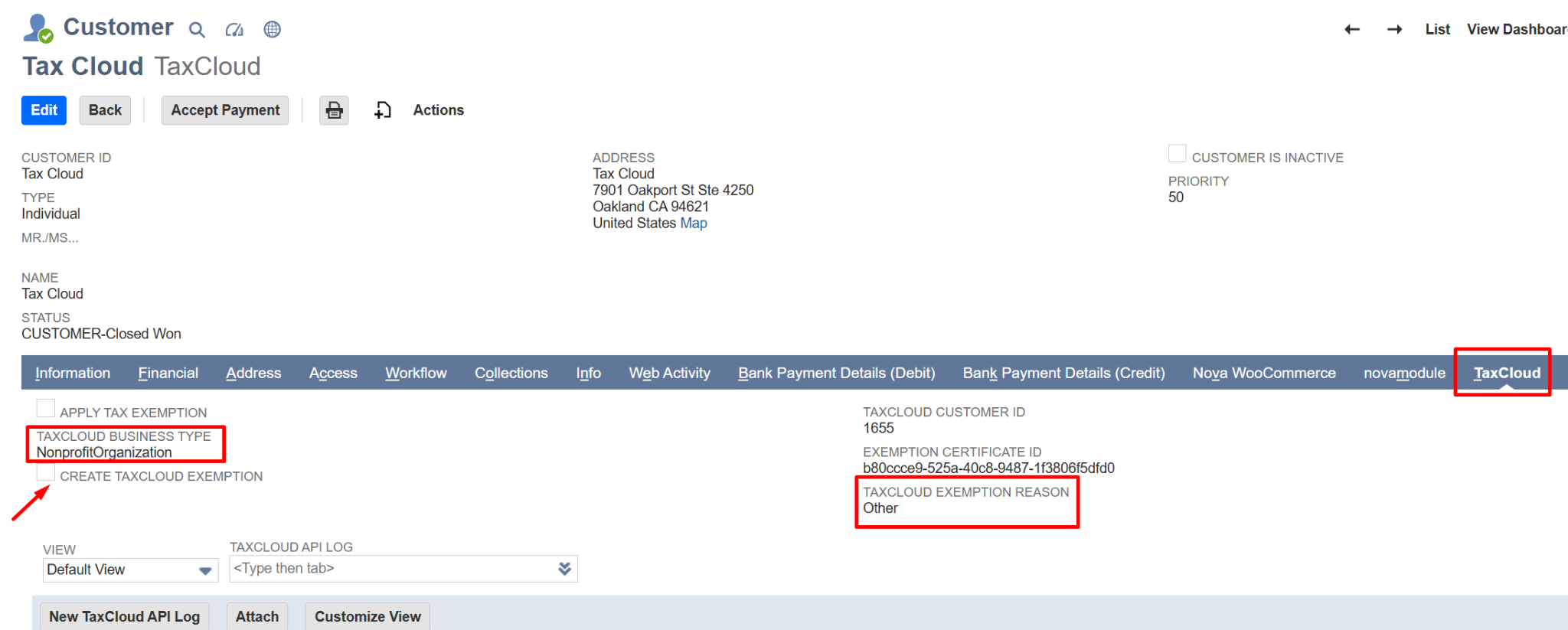
- Open the customer record and add a verified address (required for TaxCloud to issue a certificate).
- Go to the TaxCloud tab, fill in TaxCloud Business Type and Exemption Reason.
- Check Create TaxCloud Exemption and Save — this generates an Exemption Certificate ID automatically.
- On future transactions, check Apply Tax Exemption to have TaxCloud apply zero or reduced tax for qualifying items.
4. Process Tax on Transactions
The same flow applies to Sales Orders, Invoices, and Cash Sales:
- Create the record and fill in customer, shipping address, and line items.
- Set the Tax Code to TaxCloud on each line item.
- Click Verify Address and accept any corrections. (also available on Customer records)
- Click Calculate with TaxCloud and confirm calculations.
- Tax appears in the Tax Total field; line items are updated with tax rate and TaxCloud cart ID.
-
Save — this populates the TaxCloud tab and logs the calls in the TaxCloud API Log.
5. Process Refunds & Credits
- Cash Refund: Open the original Cash Sale → click Refund → review auto-populated details → Save.
- Credit Memo: Open the original Invoice → click Credit → review auto-populated details → Save.
No need to manually re-enter line items or recalculate tax — both sync to TaxCloud automatically.
6. Checkbox & Toggle Reference
| Checkbox / Toggle | Where | What It Does |
|---|---|---|
| Enable | API Credentials | Activates the integration and the Calculate with TaxCloud button. |
| Address Verification | Advanced Settings | Enables the Verify Address button on transactions. |
| Enable Developer Logs | Advanced Settings | Captures detailed API logs for troubleshooting. |
| Disable Tax Calculation | SO, INV, CS | Skips the TaxCloud calculation call for this transaction only. |
| Disable Capture in TaxCloud | INV, CS | Calculates tax but doesn't commit the order to TaxCloud. |
| Export Tax Order | INV, CS | Pushes a historical transaction to TaxCloud for backfill (no address verification performed). |
| Tax Calculated by TaxCloud | SO, INV, CS | Lets you manually enter a tax amount instead of the calculated one. |
| Create TaxCloud Exemption | Customer record | Generates an Exemption Certificate ID for this customer. |
| Apply Tax Exemption | Customer record | Applies the customer's exemption certificate during calculation. |
7. Troubleshooting
Test Connection fails — Check the Connection ID/Verify Token for extra spaces; confirm Live vs. Test mode matches your environment; confirm your TaxCloud account is on Premium.
Tax isn't calculating — Most often the Tax Code field isn't set to TaxCloud on the line item. Also confirm the Enable toggle is on and the shipping address is complete.
Wrong tax amount — Verify the item's TIC is correct and the shipping ZIP is accurate. Check the TaxCloud API Log for exactly what was sent and returned.
Exemption not applying — Confirm the customer has a valid Exemption Certificate ID and that Apply Tax Exemption is checked at calculation time.